Converting written text into a video is one of the most effective ways to repurpose content, boost engagement, and explain complex ideas visually. Whether you want to create a social media clip, a product demo, or an educational explainer, learning how to convert text to video opens up a world of creative possibilities. In this guide, you will learn the main methods, discover a simple mobile app that handles the heavy lifting, and get practical tips to make your videos look polished and professional.
What Does Text to Video Conversion Mean?
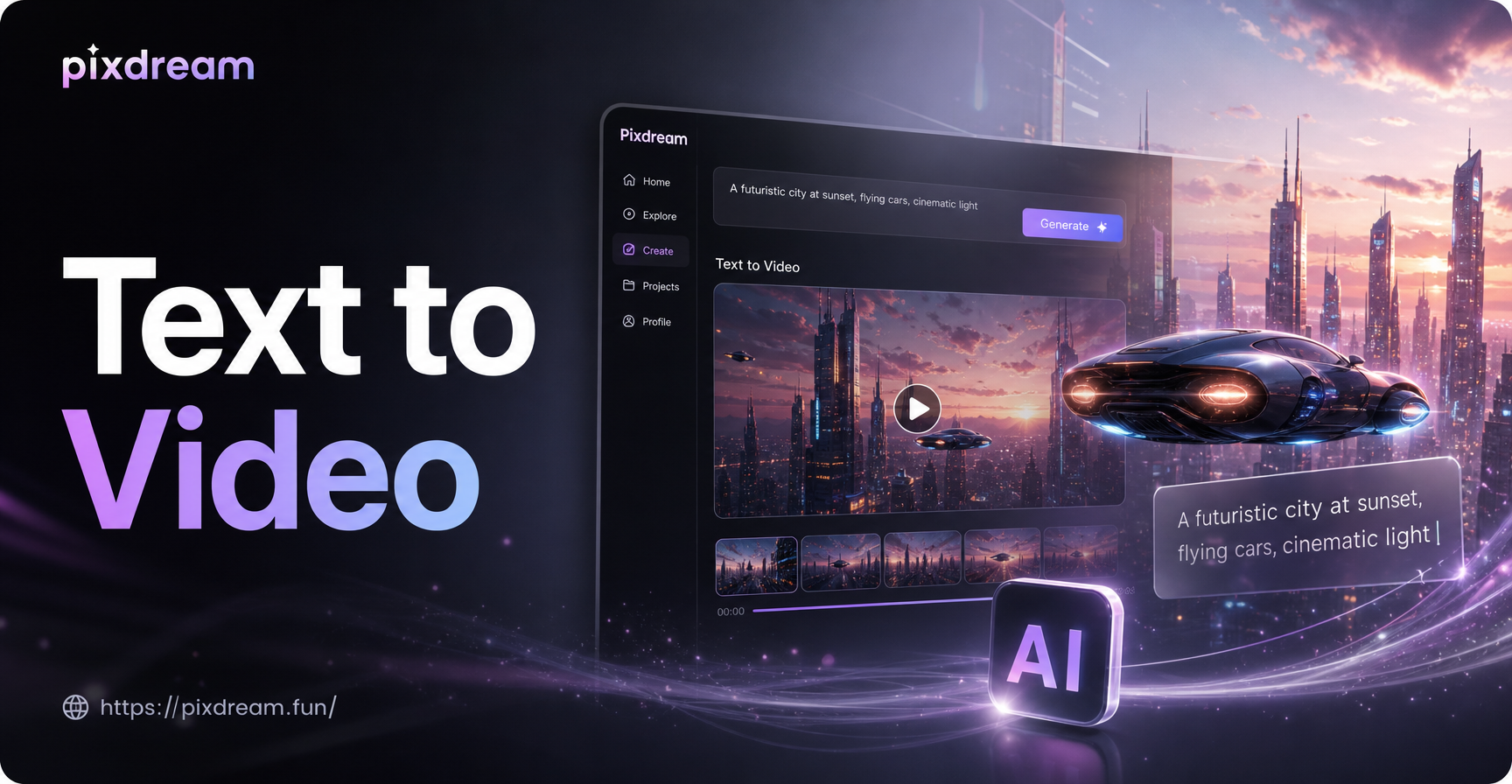
Text to video conversion is the process of turning written words into a video file. This can include turning a script into a talking head video, creating animated scenes from a description, or generating cinematic footage based on a story prompt. Modern AI tools have made this process nearly effortless. Instead of filming or designing every frame by hand, you can enter a few lines of text, choose a visual style, and let the software generate a complete video.
The result is a video that communicates your message in a dynamic format. Research shows that audiences retain more information from video than from text alone, which is why text to video tools are growing so quickly.
Why Convert Text to Video?
Video content outperforms static text in almost every online metric. Social platforms prioritize video in feeds, and viewers are more likely to share and comment on moving content. By converting text to video, you can reach new audiences, explain products more clearly, and give your written content a second life. For content creators, this means repurposing blog posts, newsletters, or even customer reviews into short, shareable clips.
Methods to Convert Text to Video
Manual Video Production
Manual production involves writing a script, recording voiceovers, capturing footage, and editing everything in software like Premiere Pro or CapCut. This approach gives you complete control, but it requires time, equipment, and editing skills. For most people, manual production is too slow for daily social media needs.
AI-Powered Text to Video Tools
AI tools have changed the game. You type a prompt or paste a script, and the system generates a video in minutes. Many platforms offer style presets such as realistic, anime, cinematic, or 3D clay. Some tools also animate static images based on your text. The key advantage is speed and simplicity. You do not need to learn complex editing software or hire a video team.
Mobile Apps Like Pixdream
Pixdream is an all-in-one AI design app available on Google Play. It includes a text to video feature that lets you enter a script, pick from over a million style filters, and generate a video directly on your phone. The app combines text to image, text to video, image to image, and image to video tools, so you can handle nearly any creative task without switching between apps. Because it is mobile only, you can create videos on the go and share them instantly to social media.
Step-by-Step Guide: How to Convert Text to Video with Pixdream
Step 1: Download the App
Go to Google Play and install Pixdream on your Android device. The app is free to download and you can start exploring the features right away.
Step 2: Write Your Script
Open the text to video tool and type the text you want to convert. Keep your script clear and conversational. For social media videos, aim for 30 to 60 seconds of spoken or on-screen text. You can paste existing text from a blog post or document.
Step 3: Choose a Style Filter
Browse the style library and select a visual theme that matches your message. For professional explainer videos, choose a clean cinematic style. For fun social clips, try anime or 3D clay. The style filter dramatically changes the mood of your video, so experiment with a few options.
Step 4: Generate and Refine
Tap generate and let the AI process your text. Depending on the length and complexity, the video may take a few seconds to a minute. Watch the result and adjust the script or style if needed. You can regenerate as many times as you like.
Step 5: Export and Share
Once you are happy with the video, export it to your device. From there you can upload it to TikTok, Instagram, YouTube, or any other platform. Since the app saves in high definition, your videos will look crisp on all screens.
Choosing the Right Style for Your Video
The style you choose has a huge impact on how your audience perceives your video. Pixdream offers more than a million style filters, so you can match the visual tone to your content. For a tech product launch, a sleek cyberpunk or futuristic style works well. For a children's story, a soft watercolor or Ghibli style feels warm and inviting. For a fashion brand, a realistic photography style keeps the focus on the products. Spend a few minutes browsing the style library, generate a short test clip, and then commit to the one that best fits your narrative.
Use Cases for Text to Video
Text to video is not just for fun. Here are some practical ways creators and businesses use this technology:
- Social media clips: Turn motivational quotes or tips into visually engaging vertical videos for TikTok and Instagram Reels.
- Product explainers: Describe how a product works in a short animated video instead of a dense manual.
- Educational content: Teachers can convert lesson summaries into review videos that students can watch at home.
- Marketing campaigns: Generate multiple versions of an ad by changing the text and style, then A/B test them.
- Storytelling: Writers can see their scenes come to life as animated previews or mood boards.
Tips for Better Text to Video Results
- Keep your script focused. One clear idea per video works best. If you have multiple points, break them into separate videos.
- Use descriptive language. The more specific your text, the better the AI can visualize the scene. Instead of "a person walking", write "a young woman in a red jacket walking through a rainy city street at night".
- Match the style to your audience. A corporate training video should look different from a TikTok trend. Choose filters that align with your brand tone.
- Preview before exporting. Always watch the full video once. Small AI glitches can be fixed by rephrasing the text or changing the style.
Common Mistakes to Avoid
One frequent mistake is using text that is too long. AI video tools work best with concise scripts. Another mistake is ignoring the aspect ratio. If you plan to post on Instagram Reels or TikTok, generate a vertical video. For YouTube, use landscape. Pixdream and most AI apps let you choose the output ratio before generation.
Some users also forget to proofread their text. Spelling errors in the script can lead to odd on-screen text. Always review your script before generating.
Frequently Asked Questions About Text to Video
Can I convert text to video for free?
Yes. Pixdream offers a free version that includes text to video generation with basic styles. You can create several videos before deciding whether to upgrade for premium filters and faster processing.
What length of text works best for text to video?
Short scripts between 50 and 150 words typically produce the best results for social media videos. Longer texts may work for explainer videos but may require more processing time.
Do I need any design skills to convert text to video?
No. The whole point of AI text to video tools is that anyone can use them. You simply type your text, select a style, and generate. No editing experience is required.
Can I use text to video for business content?
Absolutely. Many businesses use text to video for product announcements, customer testimonials, and social media ads. The professional styles available in Pixdream make it suitable for commercial use.
Conclusion
Learning how to convert text to video is a valuable skill in today's content-driven world. With AI-powered mobile apps like Pixdream, you can turn any written idea into a shareable video in minutes. Start by writing a clear script, choose a style that matches your goal, generate, and publish. The more you experiment, the better your results will become. Download the app today and see how easy it is to bring your words to life.