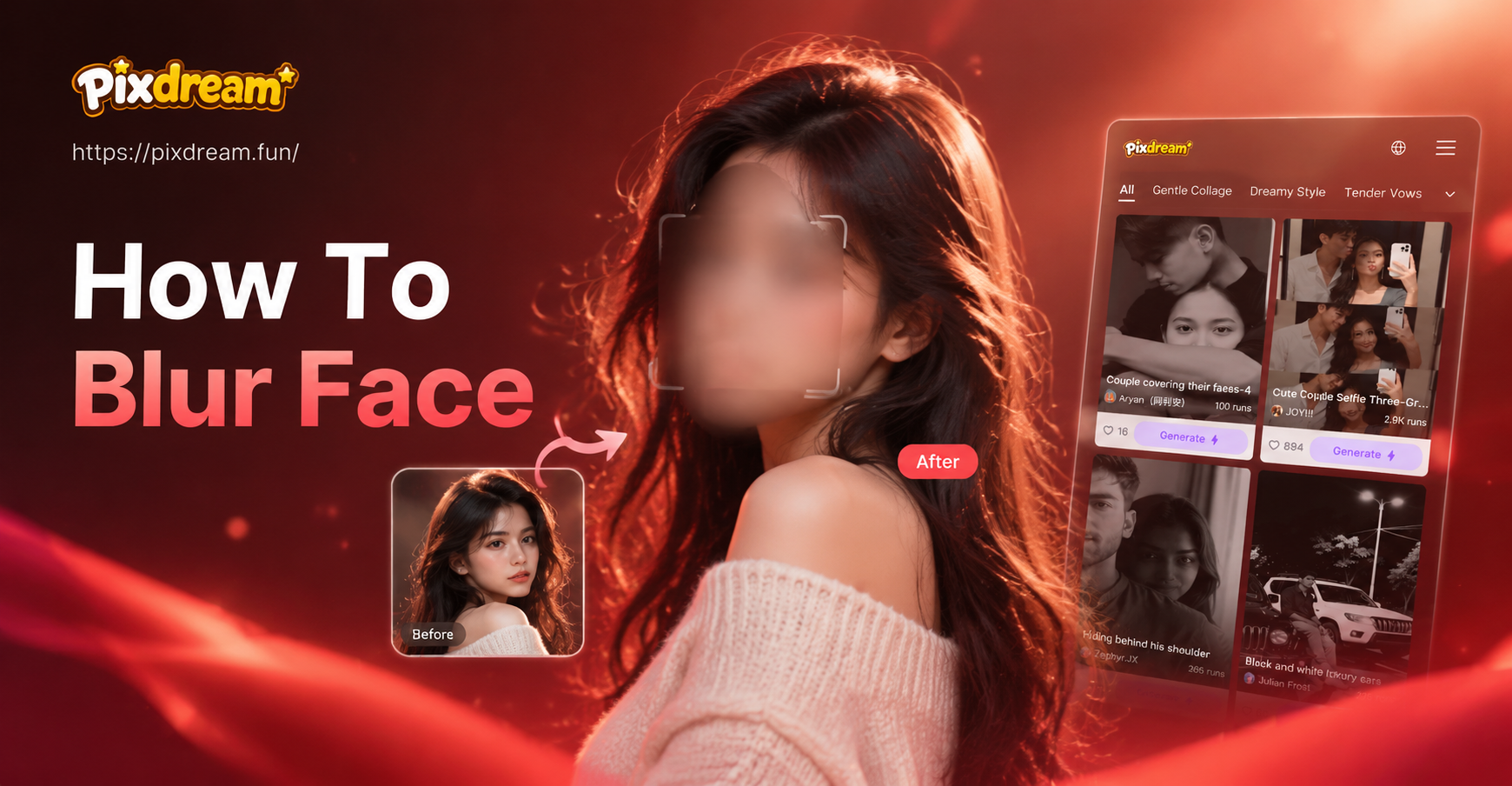
If you have ever shared a group photo, posted a video online, or covered a sensitive story, you know how important it is to control who is visible. Learning how to blur face in a photo or video is a simple way to protect privacy, respect consent, and stay safe online. The good news is you do not need a desktop computer or professional editing suite. Modern phone tools and AI apps like PixDream make face blurring fast and easy.
Why Blur a Face?
People blur faces for many reasons. Parents blur children before sharing classroom photos. Creators blur strangers in public videos. Journalists blur sources to protect identities. Businesses blur employees in training materials. In every case, the goal is the same: remove identifying details while keeping the rest of the image usable.
A proper face blur should be clean, natural, and appropriate for the image. A harsh black box can draw more attention than the face itself. A soft blur or a creative AI style mask often looks better and keeps the photo shareable.
How to Blur a Face in a Photo on iPhone and Android
Most phones do not have a dedicated face blur button in the default gallery app, but you can use free tools that take less than a minute.
Use Google Photos for a True Blur
Google Photos has a simple blur tool that works on both iPhone and Android.
- Open Google Photos and select the photo you want to edit.
- Tap Edit and then tap Tools.
- Choose Blur and adjust the brush size.
- Paint over the face you want to hide. Pinch to zoom in for precise edges.
- Tap Done and save a copy.
This method is best for a single face, a small group, or a video still. It produces a true Gaussian style blur that blends into the background.
Use PixDream for a Creative Privacy Mask
If you want to hide a face without making the photo look like a censored document, PixDream offers a strong alternative. PixDream is an AI design app for Android that includes image-to-image style transfer and a large library of artistic filters. Instead of a standard blur, you apply an artistic texture over the face area. The result looks intentional and can even improve the overall photo.
To use this method, download PixDream from Google Play, upload the photo, and choose a style such as watercolor, oil painting, or abstract art. The AI will restyle the image while preserving the surrounding scene. You can then adjust the strength until the face is no longer recognizable. This is especially useful for social media posts where a traditional blur might look out of place.
How to Blur a Face in a Video
Blurring a face in video is more involved because the face moves. You need a tool that can track the face or apply a moving blur mask.
Track and Blur with a Mobile Video Editor
Apps like CapCut and InShot include tracking blur effects. The basic workflow looks like this:
- Import your video and place it on the timeline.
- Add a blur effect or duplicate the video layer and add a mosaic effect.
- Use the mask tool to limit the blur to a small oval over the face.
- Add keyframes at the start and end of the clip, then move the mask to follow the face.
- Export the video at the original resolution.
For short clips, this method works well. For longer videos with many moving faces, a dedicated automatic face tracking tool may be faster, but the manual keyframe method gives you full control.
Use a Stylized Still Then Animate with PixDream
If the video only needs to hide a face for a few seconds, you can export a still frame, blur or stylize the face with Google Photos or PixDream, and then use PixDream's image-to-video feature to turn the edited still into a short animated clip. This works best for intros, social clips, and b-roll where the face does not need to move naturally.
How to Blur Multiple Faces in a Group Photo
Group photos present a unique challenge. If you blur each face manually, the image can look uneven. PixDream's multi-person processing identifies different faces in a single image, which makes it easier to apply a consistent style across all of them. You can hide several faces with the same artistic effect, so the photo looks unified rather than patched.
For a traditional blur, work slowly from left to right. Use a small brush around hairlines and chins, then widen the brush for cheeks and foreheads. Keep the blur strength consistent. If you are using Google Photos, save a copy after every two or three faces so you can undo mistakes without losing progress.
Step-by-Step: Blur a Face Using PixDream
This workflow is best for creators who want a privacy mask that still looks polished.
1. Download the App
Install PixDream from Google Play. The app is mobile only, so make sure you are on an Android device.
2. Upload Your Photo
Open PixDream and select the image you want to edit. You can use a selfie, group photo, or video still.
3. Choose a Style Filter
Browse the style library and pick a filter that obscures facial details. Watercolor, oil painting, and abstract textures work well for privacy because they replace fine features with soft shapes and colors.
4. Adjust the Effect
Use the strength slider or regeneration options until the face is no longer recognizable. Pay attention to the eyes, nose, and mouth. These are the features people recognize first.
5. Save and Share
Export the image in high resolution and share it directly from your phone. If the first result is not clean enough, run the same image through the filter a second time with slightly different settings.
Tips for Natural Looking Face Blur
- Match the blur to the photo. A soft blur works for portraits, while a mosaic pixel effect suits street photography or video.
- Zoom in before you blur. Small details matter around the eyes and hairline.
- Do not over blur. If the rest of the image is sharp, a heavily blurred face can look fake.
- Save a copy. Always keep the original file in case you need to start over.
- Use a consistent method across a photo set. If you blur one face in a series, blur the same face in every related image.
Common Mistakes and How to Fix Them
The blur shifts when the person moves. Add more keyframes in your video editor and place them closer together. This keeps the mask locked to the face.
The edges look too hard. Use a soft brush or feather the mask. A hard circle looks unnatural.
The face is still recognizable. Increase the blur strength or switch to a style filter that changes the facial structure more aggressively.
The photo looks censored and unattractive. This is where PixDream helps. Instead of a standard blur, use an artistic style mask that makes the edit look like a creative choice.
Frequently Asked Questions
Can I blur a face without any app?
Most phone gallery apps do not include a true blur tool, but you can cover a face with a shape or emoji. This is quick, but it is not a real blur and often looks less professional. For a clean result, use Google Photos or PixDream.
Is face blur reversible?
No. Once you blur or stylize a face and save over the original, the original detail is gone. Always keep an untouched copy if you think you might need it later.
Can PixDream blur a face in a video?
PixDream is primarily designed for image generation and image-to-video creation. For direct face tracking blur in video, use a mobile video editor with keyframe masking. PixDream is best for hiding faces in still images or creating stylized animated clips from edited stills.
What is the easiest way to blur a face on Android?
The easiest method is Google Photos. Open the photo, tap Edit, go to Tools, and use the Blur brush. For a more creative privacy mask, install PixDream and apply an artistic style filter.
Does blurring a face remove metadata?
No. Blurring changes the pixels, but the image file may still contain metadata such as location, time, and device information. If privacy is a serious concern, also remove or limit metadata before sharing.
Final Thoughts
Learning how to blur face in a photo or video gives you control over your digital privacy. Start with the method that fits your need. Use Google Photos for a quick true blur, a mobile video editor for moving faces, and PixDream when you want a polished AI style mask that keeps your content looking intentional. Download PixDream from Google Play, upload your first photo, and see how easy it is to protect identities without ruining the shot.