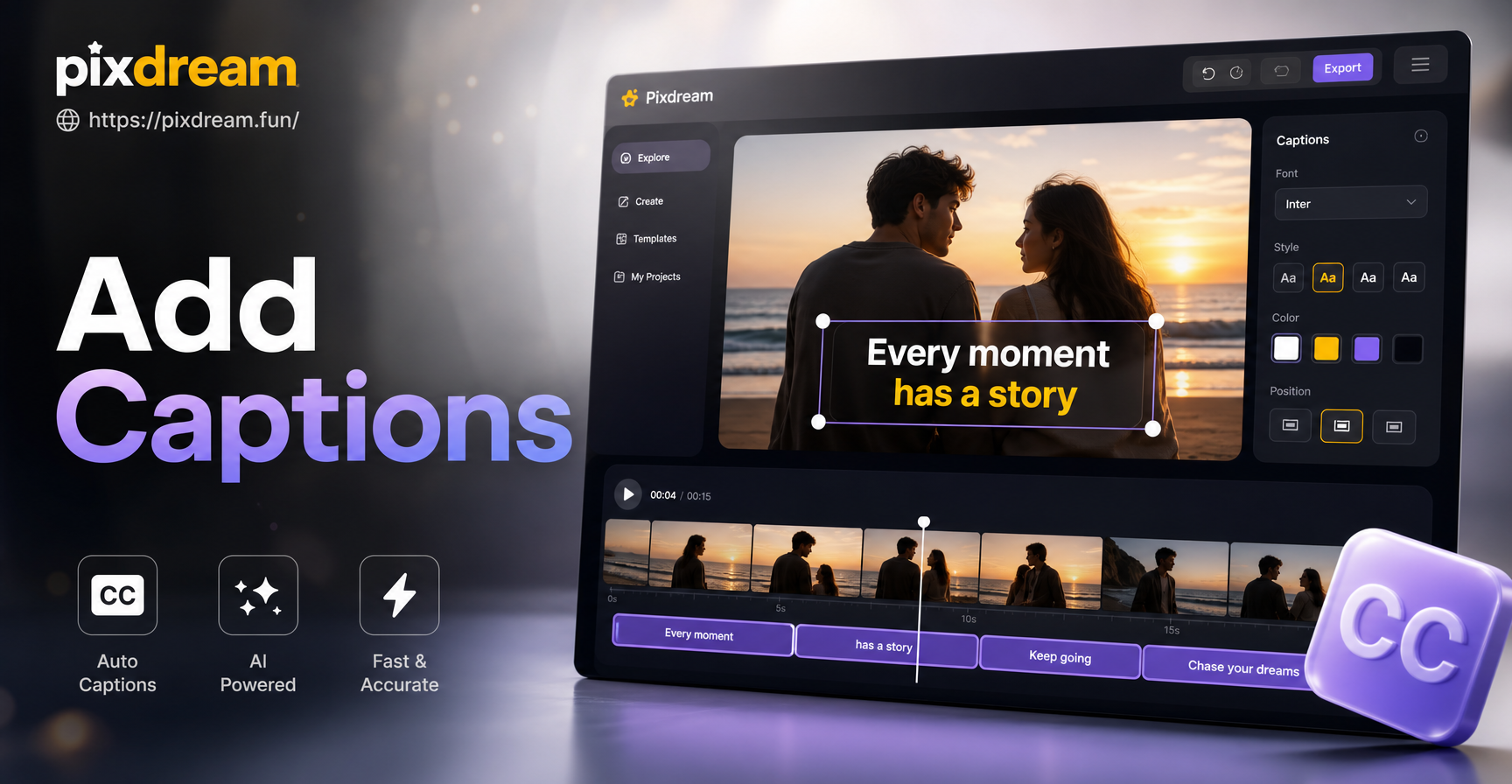
Adding captions to a video is one of the fastest ways to boost watch time, improve accessibility, and keep viewers engaged even when the sound is off. Most social media feeds autoplay videos on mute. If your message does not appear as text on screen, you risk losing your audience within the first few seconds. This guide walks you through several practical methods for adding captions to a video, whether you use a free mobile app, a built in social media editor, or an AI video tool like Pixdream.
Captions can be open captions, which are permanently burned into the video frame, or closed captions, which viewers can toggle on and off. For social media, open captions usually work best because they are always visible. For platforms like YouTube or educational content, closed captions are more flexible. The right choice depends on where you plan to publish.
Why You Should Add Captions to Every Video
Captions do more than display words. They improve accessibility for viewers who are deaf or hard of hearing. They also help people watching in noisy places or in silent mode, which is common on public transport and at work. Studies show that videos with captions often get longer watch times because viewers are more likely to stay when they can read along. Captions also reinforce key points and make content easier to understand for non native speakers.
What You Need Before You Start
You do not need expensive software to add captions. A smartphone, the original video file, and a clear script or transcript are enough. If your video has spoken audio, write down what is said or use an automatic transcription tool. Keep the original audio intact because it helps the caption editor detect words and timing. If you plan to share on a specific platform, check that platform's recommended caption length and style first.
Method 1: Add Captions Automatically with a Free Mobile Editor
Free mobile editors such as CapCut, VN, and InShot offer automatic caption features. The process is similar across apps. First, import your video into the editor. Second, tap the captions or text option. Third, choose auto captions or auto subtitles. The app will analyze the audio and generate text that matches the speech. You can then correct any mistakes, adjust timing, and customize the font and color.
How automatic captions work
Automatic caption tools use speech recognition to convert audio into text. They work best with clear audio, minimal background noise, and a single speaker. If your video contains music, slang, or overlapping voices, you may need to edit the captions manually. Always review the full transcript before exporting.
Method 2: Add Captions Directly in TikTok or Instagram
If you publish short form videos, you can add captions without leaving the platform. In TikTok, record or upload your video, then tap the text icon and add captions manually. TikTok also offers an auto captions feature in some regions. In Instagram Reels, you can use the text tool to type captions over your video. However, these built in tools are basic and may not support detailed styling. For more control, create your captions in a separate editor before uploading.
Method 3: Add Captions Manually for Full Control
Manual captioning gives you complete control over wording, timing, and placement. This method is useful when automatic transcription fails, such as with heavy accents, technical terms, or background noise. In most editors, you can add a text layer, type the caption, and drag it to the right position on the timeline. Repeat for each line of dialogue or narration. It takes longer, but the result is precise and polished.
Method 4: Use an AI Video Generator to Create Clips Worth Captioning
AI video tools can help you create engaging raw footage quickly. Pixdream, for example, turns short text prompts or still images into eye catching video clips. You can describe a scene, choose a style filter, and generate a video inside the app. After you export the clip, you can open it in any caption editor and add text. This workflow is especially useful for marketers and creators who need fresh visual content without filming.
Other web based subtitle tools such as Kapwing and Rev can generate captions from uploaded videos. These tools often produce a caption file that you can download and burn into the video. Some also let you edit the transcript in a browser before exporting. Choose the tool that fits your budget and privacy needs.
Step by Step: Add Captions in CapCut on iPhone or Android
CapCut is a popular free editor for mobile video. Follow these steps to add captions quickly.
- Open CapCut and start a new project.
- Import the video you want to caption.
- Tap the Text menu at the bottom.
- Select Auto captions.
- Let the app transcribe the audio.
- Tap each caption block to fix any words that are wrong.
- Adjust the font, size, color, and position on the preview screen.
- Export the video in high resolution and save it to your gallery.
This process usually takes less than five minutes for a one minute video. If you have a longer video, break it into sections to make editing easier.
Caption File Formats: SRT, VTT, and Burned In Captions
Closed captions often use SRT or VTT files. An SRT file contains numbered caption blocks with start and end timestamps. A VTT file works similarly and is common on the web. These files are useful on YouTube, Vimeo, and many video players. Burned in captions, also called open captions, are part of the video image and cannot be turned off. For social media, burned in captions are usually the best choice.
How to Make Your Captions Look Professional
Good captions are easy to read at a glance. Use a bold sans serif font that contrasts with the background. White text with a black outline works on most footage. Keep captions inside the safe zone so they are not cut off on social media feeds. Limit each caption to about six or seven words on screen at once. This prevents the viewer from reading ahead and keeps the pace natural. Use consistent capitalization and punctuation throughout.
Common Caption Mistakes That Hurt Your Video
One common mistake is making captions too long. A full sentence that stays on screen too long can distract from the visuals. Another mistake is poor contrast, such as white text on a light background. Misspelled words and missing punctuation also reduce credibility. Finally, do not let captions cover important visual elements like faces, products, or on screen graphics.
How to Add Captions to Videos You Made with Pixdream
Pixdream focuses on AI video generation rather than subtitle editing. That means you should create your clip in Pixdream first, then use a caption editor to add text. Start by opening Pixdream and generating a video from a text prompt or an image. Choose a style filter that matches your brand or mood. Export the video to your phone gallery. Open CapCut, InShot, or another editor and follow the steps above to add captions. This combination gives you AI generated visuals and polished, readable text.
Frequently Asked Questions About Adding Captions to a Video
Can I add captions to a video for free?
Yes. Apps like CapCut and VN offer free automatic caption features. You can also add captions manually in TikTok, Instagram, and most mobile editors without paying.
How long should captions stay on screen?
Each caption should stay long enough to be read twice. For short captions of four to six words, one to two seconds is usually enough. Longer captions should be split into smaller parts.
What is the best font size for video captions?
A font size that covers about 10 to 15 percent of the video height works well on mobile screens. Test your video on a phone before publishing to make sure the text is legible.
Do captions help video SEO?
Yes. Captions provide text that search engines and platforms can index. On YouTube, closed captions can improve discovery for relevant searches. On social media, captions increase watch time, which often boosts distribution.
Can I add captions to an existing video without a computer?
Yes. Most mobile editing apps support captioning on both iPhone and Android. You can import a video from your gallery, generate or type captions, and export the finished file entirely on your phone.
Adding captions to a video does not have to be complicated. With a free mobile editor and a few minutes of review, you can make your content more accessible, engaging, and professional. If you want to create original video clips before captioning, download Pixdream and start generating AI videos from simple text or images today.