Prompts For Removing Person
Choose the Photo Cleanup Filter That Suits You Best
Find the perfect AI tool to remove people, objects, and distractions from your images with just a few taps.
Smart Tools for Person Removal
Use these targeted AI features to erase unwanted people and restore your photos without visible edits.
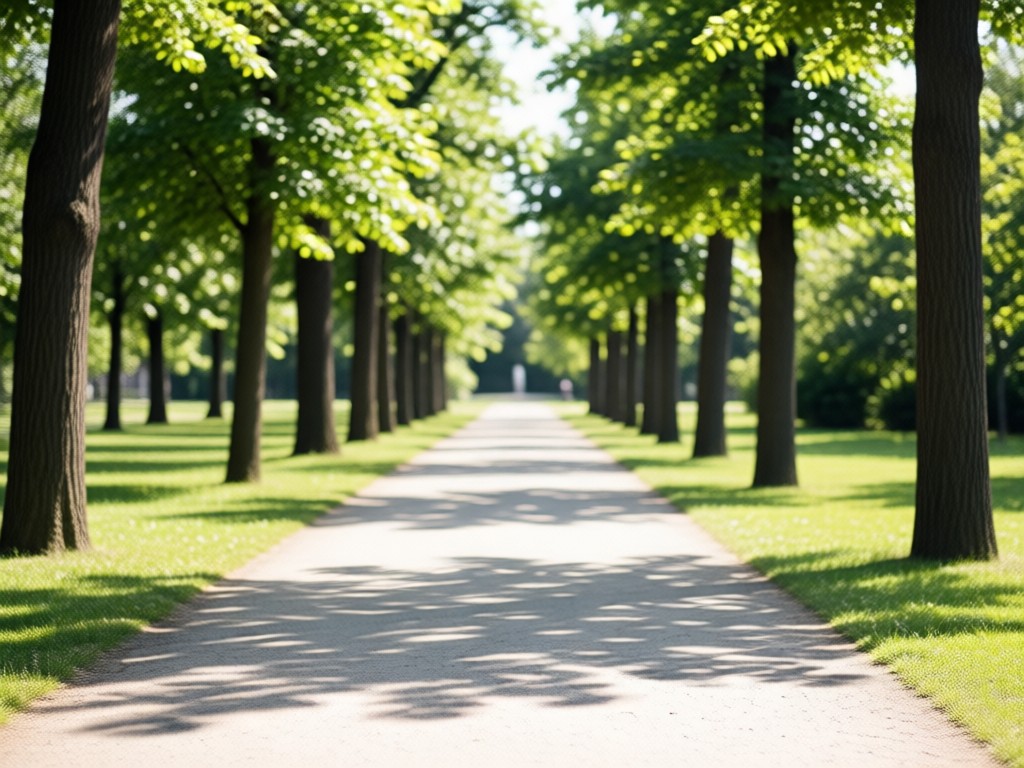
AI Person Removal
Select any person in a photo and remove them with a single tap. pixdream automatically analyzes the scene and fills the area with matching textures, colors, and light.
AI Person Removal
Select any person in a photo and remove them with a single tap. pixdream automatically analyzes the scene and fills the area with matching textures, colors, and light.
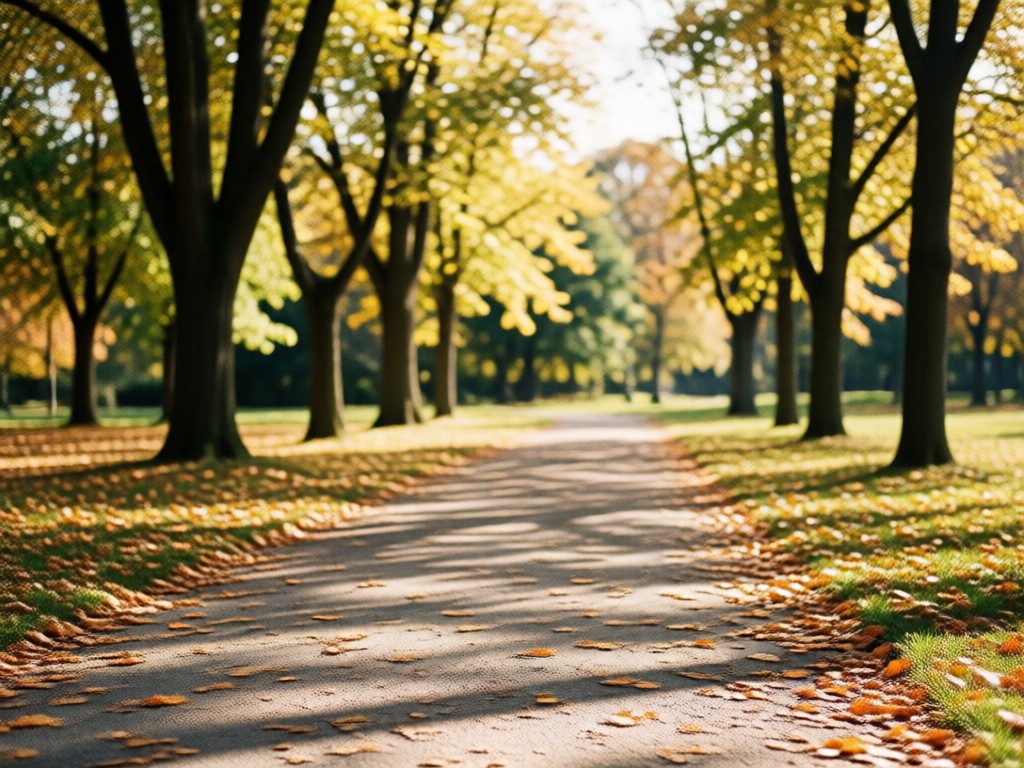
Natural Background Fill
After erasing a person, the AI reconstructs the missing background using surrounding context. No empty holes, no smudges, just a clean and believable photo every time.
Natural Background Fill
After erasing a person, the AI reconstructs the missing background using surrounding context. No empty holes, no smudges, just a clean and believable photo every time.
Multi Person Editing
Upload group photos and remove one specific individual without affecting others. pixdream keeps faces distinct and preserves the original scene layout from start to finish.
Multi Person Editing
Upload group photos and remove one specific individual without affecting others. pixdream keeps faces distinct and preserves the original scene layout from start to finish.
How to Remove a Person with Prompts
Create clean, edited photos in just a few simple steps using your own words and pixdream's powerful AI.
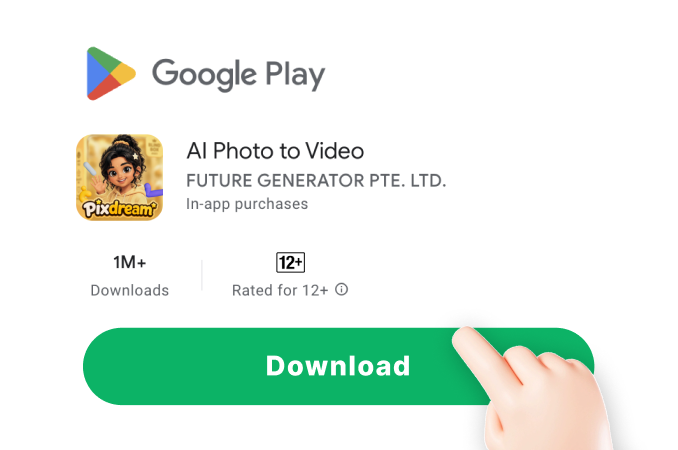
Step 01.
Download the pixdream app from Google Play to get all person removal prompts and filters in one place.
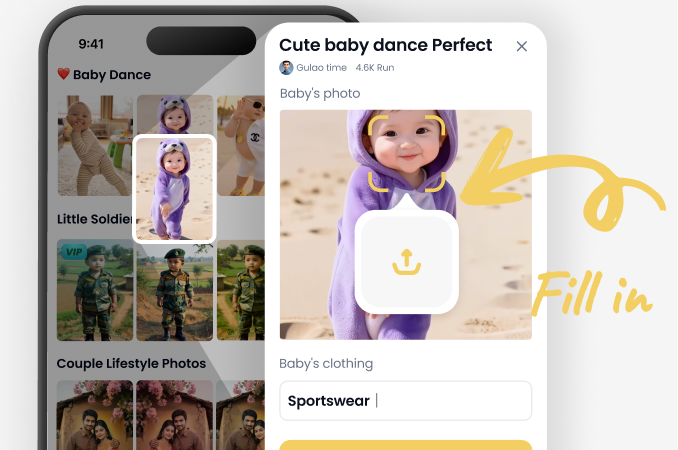
Step 02.
Open an image or upload a group photo, then type a prompt like remove the person on the left or select a cleanup filter.
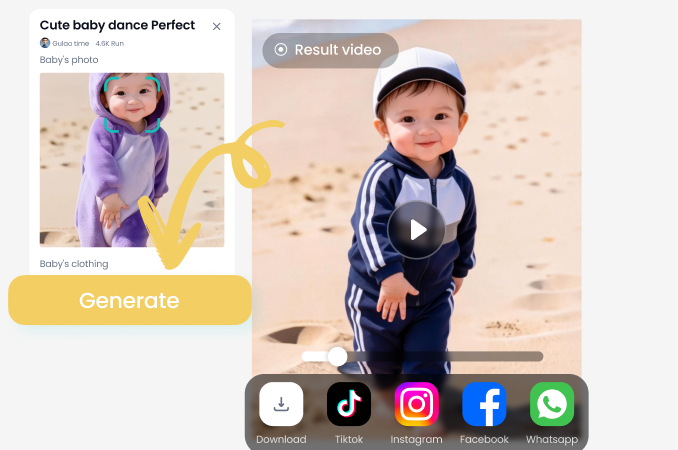
Step 03.
Generate your edited image, check the background, and save or share the final result directly from the app.
Before and After Person Removal Examples
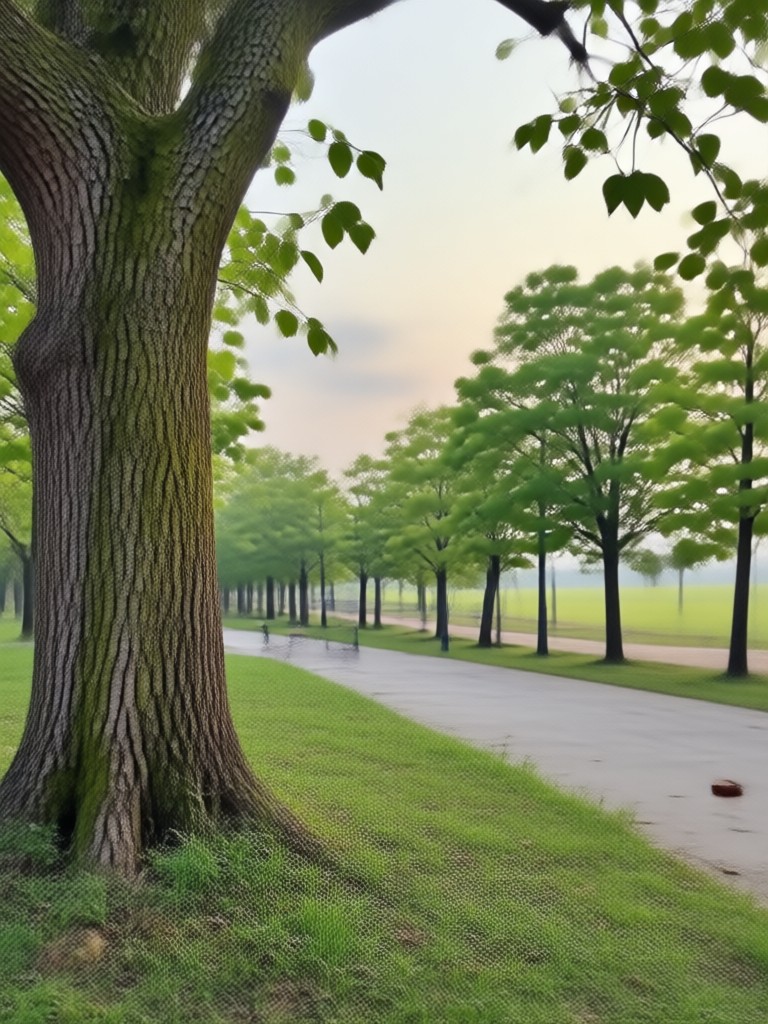
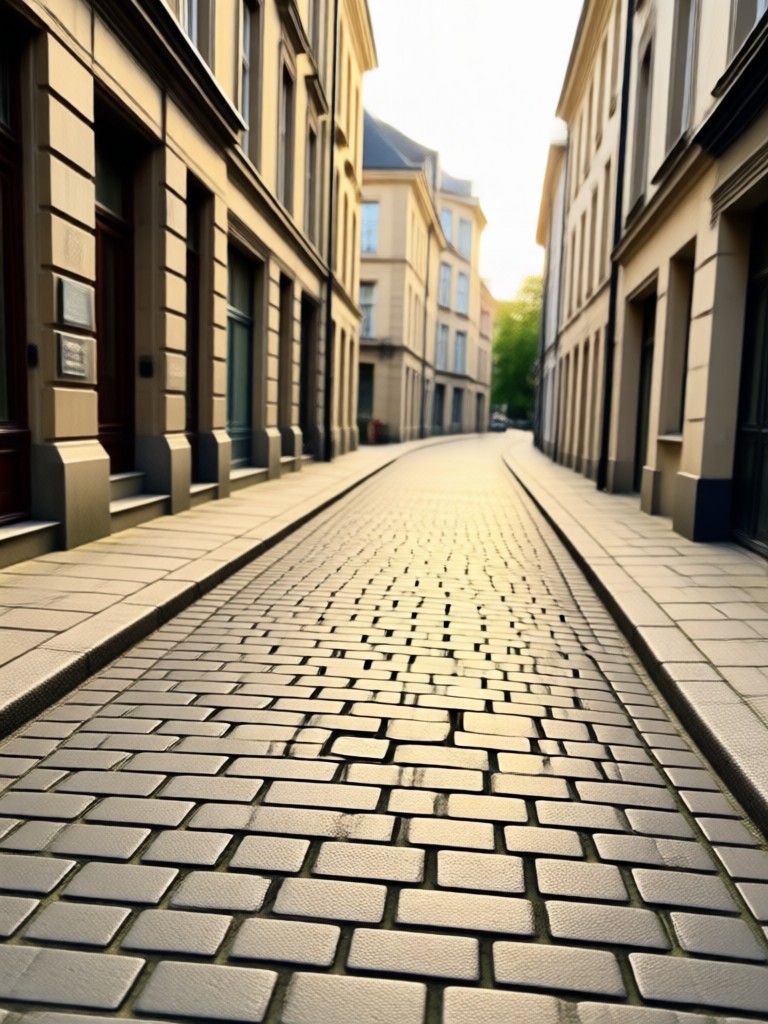
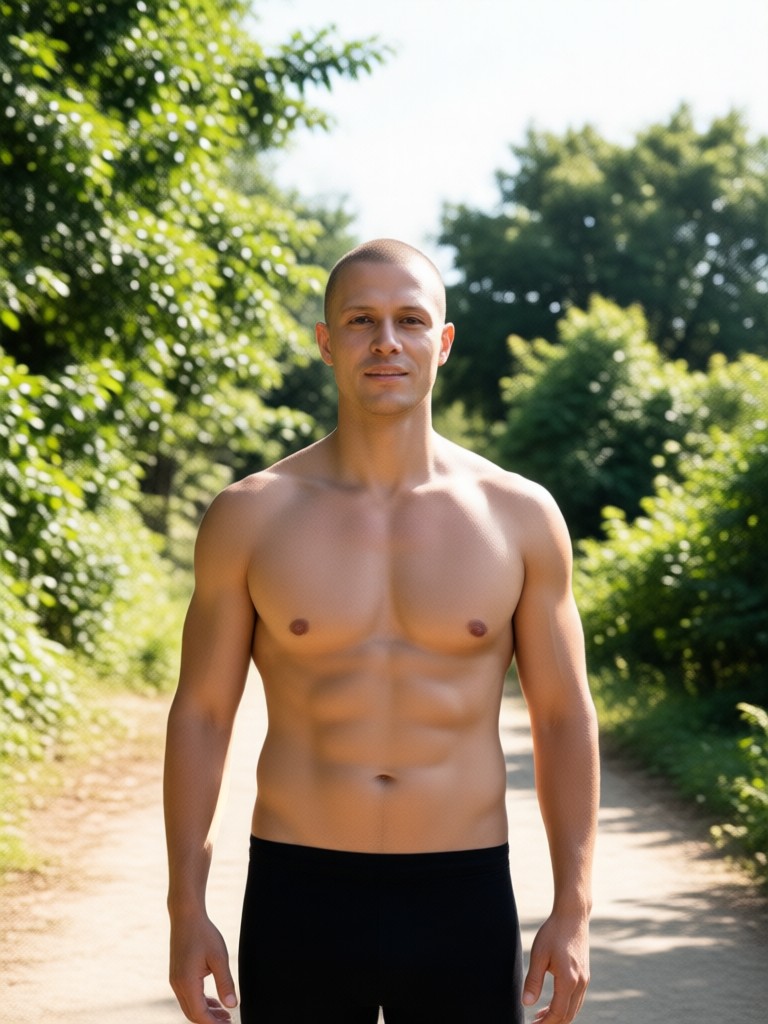
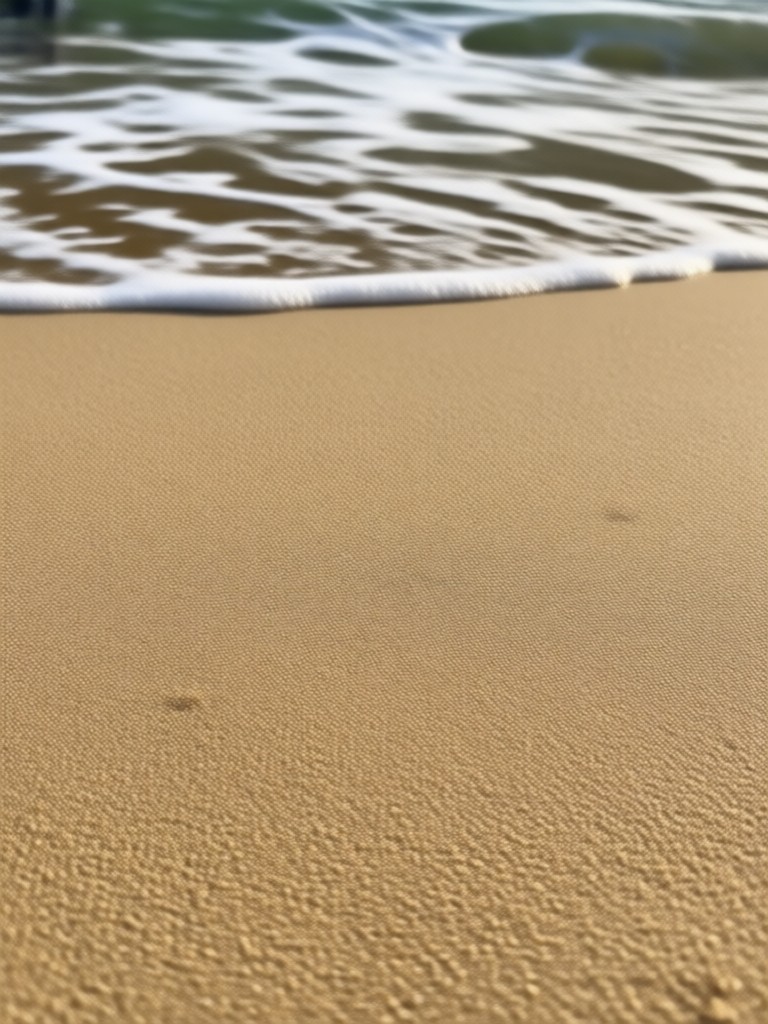
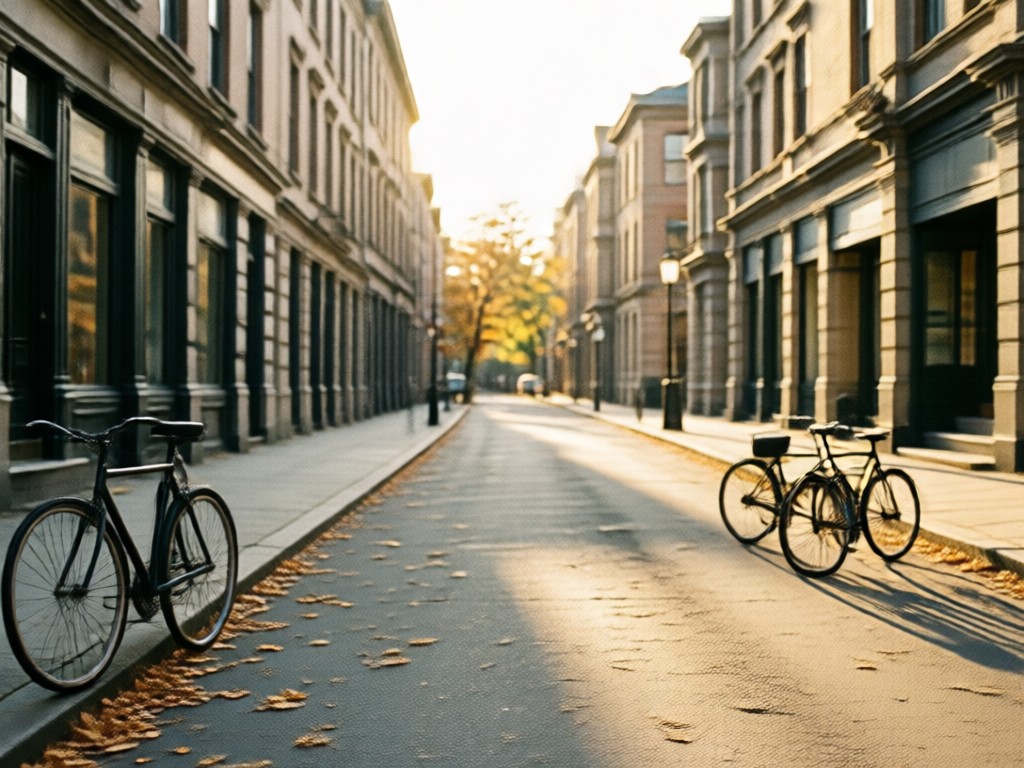
See how pixdream handles different cleanup tasks, from erasing photo bombers to removing strangers from crowded shots. Every result keeps lighting and texture consistent.
Why Use Prompts For Removing Person
Typing a simple instruction is often faster and more accurate than manual healing tools. pixdream understands natural language and cleans up the exact area you describe.
Why Use Prompts For Removing Person
Typing a simple instruction is often faster and more accurate than manual healing tools. pixdream understands natural language and cleans up the exact area you describe.
Here is What People Think About pixdream
Perfect for cleaning up group photos
I had a group shot with an extra person ruining the composition. I typed remove the guy in the back and pixdream fixed it in seconds. The background looked completely real.
No more awkward ex photos
I used a prompt to delete my ex from a vacation picture. The AI filled the beach background naturally and the lighting matched perfectly. I was shocked at how easy it was.
Great for professional product shots
I needed to remove a person from a store photo before using it in an ad. A quick prompt cleaned the frame and kept all the product details sharp. Huge time saver.
Frequently Asked Questions
Clear answers about using prompts for removing a person from your photos with pixdream.
More Topics You May Like
Explore more AI photo editing topics and discover fresh ideas for your next project.

Giantess AI Art: Gemini Prompts That Work

Singer Photo Prompts: AI Ideas for Stunning Vocalist Portraits

Baker AI Prompts That Turn Ideas into Delicious Art
Van Gogh Style Prompt: AI Art Generator for Stunning Paintings
Giantess AI Art: Gemini Prompts That Work
Singer Photo Prompts: AI Ideas for Stunning Vocalist Portraits
Baker AI Prompts That Turn Ideas into Delicious Art
Van Gogh Style Prompt: AI Art Generator for Stunning Paintings
Ready to Remove Unwanted People?
Download pixdream and use ready made prompts to clean up any photo in seconds. No design skills needed, just type and generate.
Ready to Remove Unwanted People?
Download pixdream and use ready made prompts to clean up any photo in seconds. No design skills needed, just type and generate.