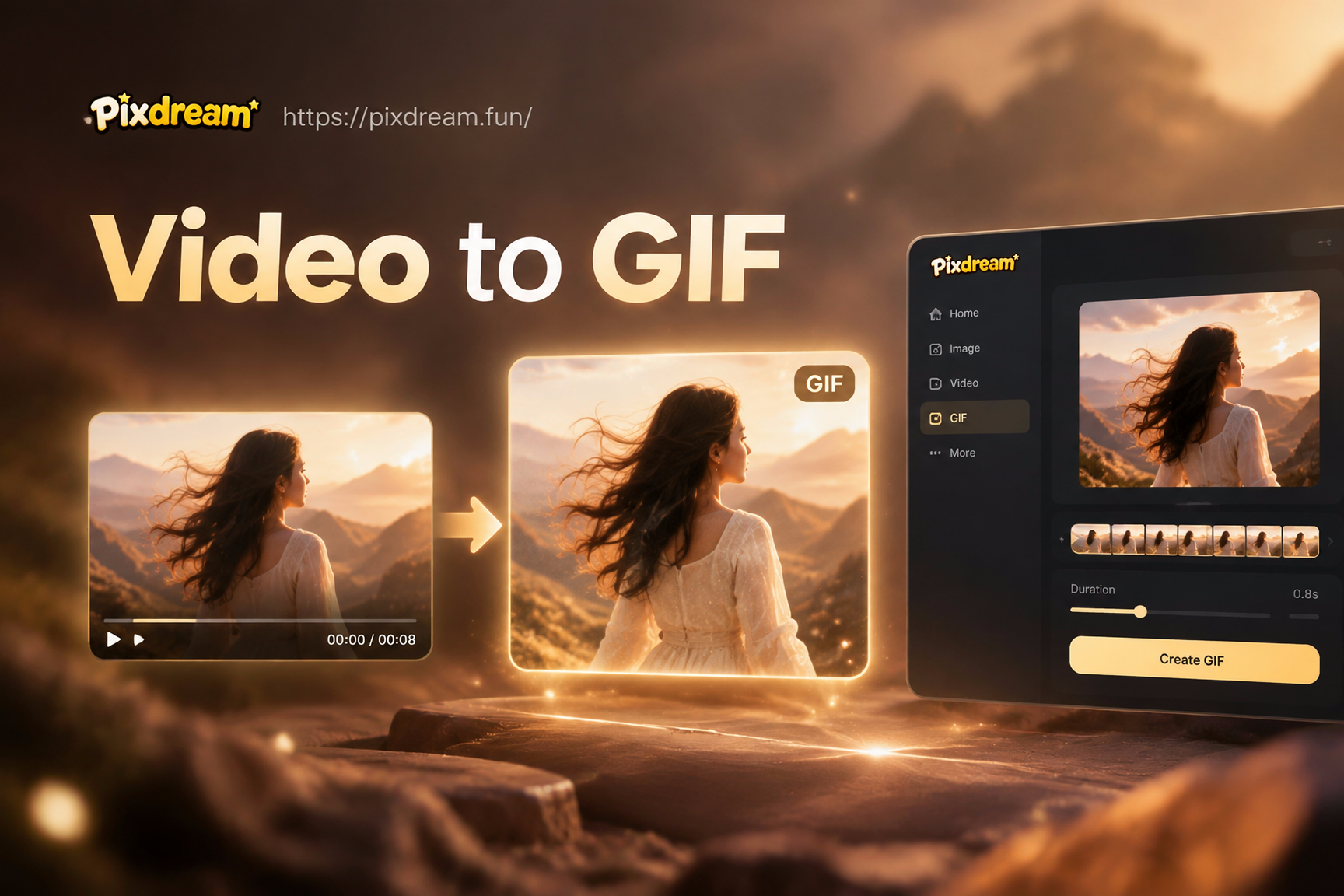
If you have ever wanted to turn a short clip from your camera roll into a looping animated GIF, you are not alone. GIFs remain one of the most shareable formats for social media, messaging apps, and blog comments. This guide explains a practical mobile first workflow. You will learn how to use pixdream to create a short video or an animated photo, then convert that clip into a GIF using a free converter app. The process works entirely on your phone, and you do not need any video editing experience.
Why Create a GIF from a Video?
Videos often contain a perfect moment that deserves to loop forever. A GIF isolates that moment and makes it easy to share without sound, without a play button, and without a large file size. Marketers use GIFs to grab attention in emails. Friends use them to react in group chats. Content creators use them to preview longer videos. When you know how to create a GIF from a video, you can repurpose any clip into a lightweight, evergreen visual asset.
The challenge is that most desktop video editors feel heavy for such a small task. A mobile workflow is faster, especially when you already have an app like pixdream that can generate short AI powered clips from text or images. You can create a brand new video loop inside pixdream, or you can use an existing video from your phone. Either way, the final conversion to GIF takes less than a minute with a free converter.
What You Need Before You Start
To follow this tutorial, you only need three things. First, install pixdream from Google Play. It is a mobile AI design tool that creates images and videos from text prompts, uploaded photos, or style filters. Second, prepare a source video or an idea for a short clip. If you do not have a video yet, pixdream can generate one for you. Third, install any free GIF maker app from the Play Store. Popular options include GIPHY, ImgPlay, or GIF Maker. These apps handle the final video to GIF conversion on your phone.
You do not need any design skills or prompt engineering experience. The pixdream interface is built around simple taps and style templates. You choose a style, add your input, and generate. The same logic applies when you convert the result to a GIF.
Method 1: Create a Short AI Clip with pixdream and Convert It to GIF
This method is ideal when you want a GIF that does not exist yet. You can describe a scene, upload a photo, or pick a trending style. pixdream generates a short video clip that you can then convert to a GIF. Follow these steps.
Step 1: Download and Open pixdream
Go to Google Play and search for pixdream. Install the app and open it. The home screen shows a variety of creative tools including text to image, image to image, text to video, and image to video. For GIF creation, the video tools are most relevant because you need a short motion clip. Tap the video generation option that matches your input type.
Step 2: Choose Your Input
You have two main choices. You can type a text prompt that describes the scene you want, such as a waving cat or a rotating flower. Or you can upload a photo from your gallery, such as a portrait or a product shot. pixdream will animate that photo using its image to video feature. If you already have a video on your phone, skip ahead to Method 2.
For this method, pick a style template. pixdream offers more than one million style filters, including realistic photography, anime, 3D clay, cyberpunk, watercolor, and cinematic looks. The style you choose determines the visual mood of your GIF. Because GIFs are short and loop often, bold styles work well. A cyberpunk color palette or a soft watercolor texture makes the loop more eye catching.
Step 3: Generate a Short Looping Clip
Tap the generate button and wait a few seconds. pixdream creates a short video based on your prompt or animated photo. The output length is usually between two and five seconds, which is perfect for a GIF. Keep your prompt focused on a single action or a simple loop. For example, type a cat blinking slowly or coffee steam rising. Repetitive motions create seamless GIF loops.
If the first result looks off, adjust your prompt or choose a different style and generate again. You can generate multiple versions for free and pick the best one.
Step 4: Export the Video to Your Phone
Once you are happy with the clip, save it to your phone gallery. Look for a save or export button inside the pixdream result screen. The app saves the video in a standard MP4 format that any GIF converter can read. The exact button label may vary by app version, but the function is always present.
Step 5: Convert the Video to GIF
Open your free GIF maker app, such as GIPHY or ImgPlay. Import the video you just saved from pixdream. Trim the clip if needed, then tap the convert or create GIF button. Most converter apps let you adjust the frame rate, quality, and loop speed. Choose a resolution around 480 pixels wide for a good balance between quality and file size. Save the final GIF to your gallery or share it directly to social media.
That is the complete workflow. You have learned how to create a GIF from a video using pixdream as the source generator. The whole process takes less than five minutes once you know the steps.
Method 2: Convert an Existing Video to GIF on Your Phone
If you already have a video on your phone, you can skip the AI generation step. Open your GIF maker app and import the video from your gallery. Trim the video to the exact segment you want to loop. Most GIF makers default to a three second or five second loop. You can also adjust the playback speed. Slower loops often look more polished.
For best results, choose a video that has minimal camera shake and a clear subject. A clean background helps the loop feel smooth. Once you are satisfied, export the GIF. The app handles the conversion, so you do not need any technical knowledge.
This method is fast, but it relies on existing footage. If your video is too long, too dark, or too shaky, consider using pixdream to generate a fresh short clip instead. The AI video tools can produce a cleaner loop from a simple prompt, which often looks better as a GIF.
Tips for High Quality GIFs
Creating a good GIF is not just about the conversion step. The source video matters. Here are a few practical tips to improve your results.
- Keep the clip short. A two to five second loop is ideal. Longer GIFs become large files and load slowly.
- Choose a simple subject. A single face, object, or animal loops better than a busy crowd scene.
- Use a steady source. If your original video shakes, the GIF will shake too. AI generated clips from pixdream tend to be stable because they are created frame by frame from a prompt.
- Pick a bold style. Since GIFs are small and muted, high contrast colors and strong outlines help the animation stand out.
- Optimize the file size. Most GIF makers let you reduce the frame rate or resolution. A GIF under 5 MB is easy to share in messaging apps.
When you generate your source clip with pixdream, you can experiment with different style filters to see which one looks best as a loop. The same prompt can produce a photorealistic clip, an anime clip, or a watercolor clip. Test two or three versions before converting.
Common Problems and Fixes
Sometimes the final GIF does not look as good as expected. Here are the most common issues and how to fix them.
The GIF is too large. Reduce the frame rate from 30 fps to 15 fps, or lower the resolution from 720p to 480p. Most converter apps have a quality slider.
The loop is not seamless. If the motion jumps at the loop point, trim the video so the first and last frames look identical. Or choose a subject with a natural loop, like a blinking eye or a waving hand.
The source video is blurry. Use a higher resolution source. When generating with pixdream, select the HD output option if available. Avoid uploading screenshots or heavily compressed videos.
The GIF plays too fast or too slow. Adjust the playback speed in your converter app. A speed of 1x or 0.75x usually works well for reaction GIFs.
If you are still struggling, try a different source video. The easiest way to get a clean loop is to generate a new short clip with pixdream from a simple text prompt. AI generated motion is often smoother and easier to loop than handheld phone footage.
Frequently Asked Questions About Making GIFs from Videos
Can I create a GIF directly in pixdream? pixdream focuses on AI image and video generation. It does not have a built in GIF export button. You generate a short video clip, save it, and then use a free GIF maker app to convert it. This two step process gives you more control over the final GIF quality.
Do I need to pay for the GIF converter? Most GIF maker apps are free with optional premium features. The basic video to GIF conversion is free. You can use GIPHY, ImgPlay, or any similar app without paying.
What is the best video length for a GIF? Two to five seconds is the sweet spot. Shorter loops load quickly and repeat cleanly. Longer GIFs become large files and can feel tedious.
Can I make a GIF from a photo using pixdream? Yes. Upload a photo to pixdream and use the image to video feature. The app animates the photo, such as making a person blink or smile. Then save the generated short video and convert it to a GIF with a converter app. This is a great way to create a custom animated reaction GIF.
Start Creating Your First GIF Today
Learning how to create a GIF from a video opens up a new way to share moments, promote content, and express yourself online. You no longer need desktop software or video editing skills. With pixdream on your phone, you can generate a fresh short clip in seconds, then turn it into a loopable GIF with any free converter. Download pixdream from Google Play and try the workflow today. Your first shareable GIF is only a few taps away.